
Artwork guide · CO₂ laser
Vector cutting paths
Continuous scoring and filled engraving
Preparing Artwork for CO₂ Laser Cutting & Engraving
How to separate cut, score and engraving information for suitable non-metal materials.
Send Your Files Request a Quote
Explanatory artwork illustration
Explanatory artwork illustration
Production-ready artwork
Make the artwork, item and intended result clear.
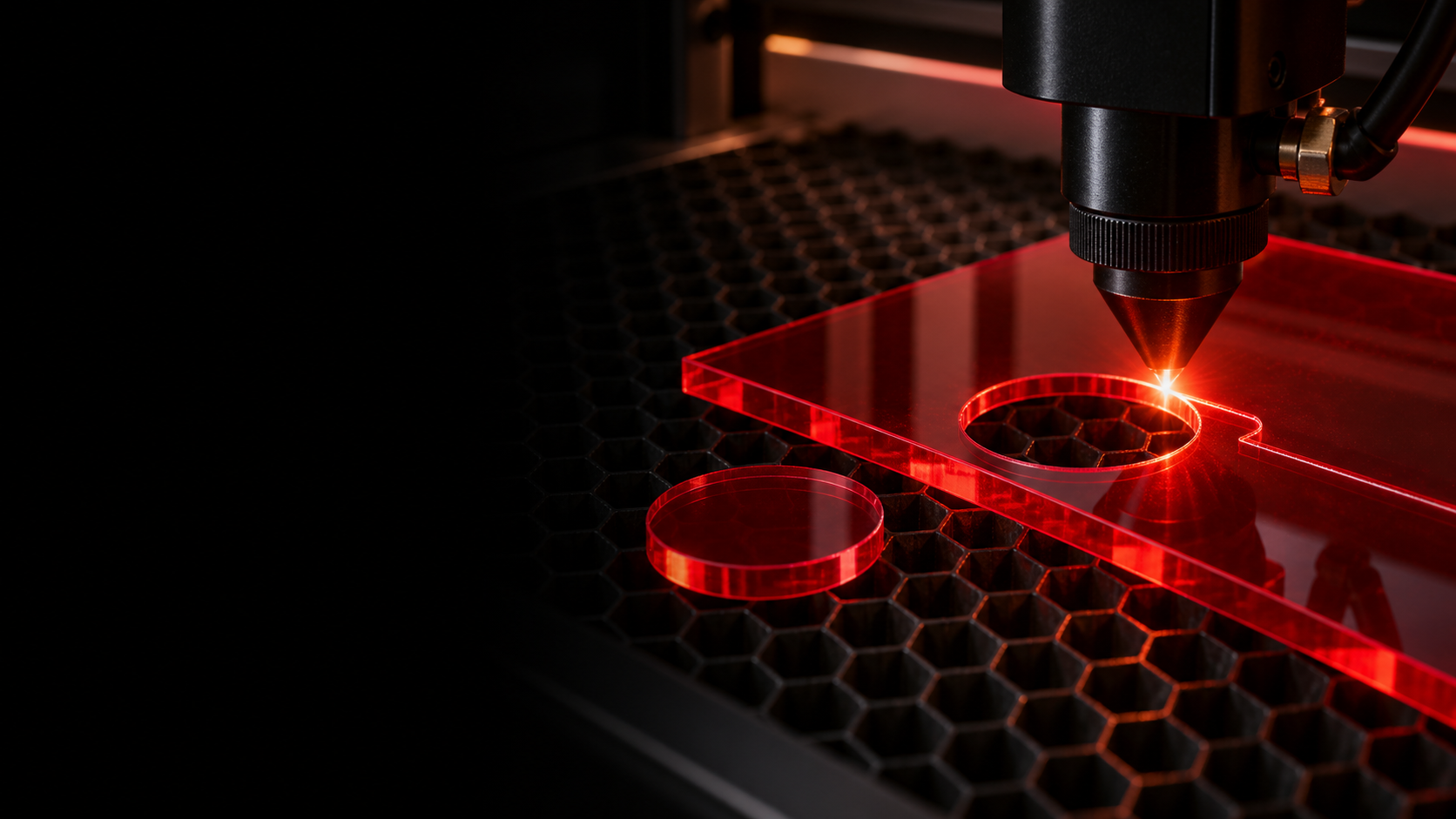
CO₂ laser processing cuts profiles through suitable non-metal sheets, scores continuous surface lines and raster-engraves filled artwork. The file must identify which of these results is needed.
- Raster Engraving
- Vector Scoring
- Profile Cutting
Finished static diagram.
Understand the process
What Is Laser Cutting?
Laser cutting follows a vector path completely through suitable non-metal material, separating the required component from the surrounding sheet. External profiles, holes, openings and cut-outs therefore need clean vector paths. A cutting line defines where the laser travels; it is not printed onto the finished item.
Understand the process
What Is Laser Scoring?
Scoring follows a continuous vector line across the surface without cutting all the way through. It creates a fine surface line for outlines, reference guides, simple graphics and fine detail. Fold or reference marks are reviewed for the material. Use a continuous path unless you intentionally want a dashed pattern.
Understand the process
What Is Raster Engraving?
Raster engraving works rather like a printer: the laser scans backwards and forwards across an area, removing or changing the surface to reproduce filled text, logos, photographs or shaded graphics. It processes an area or image rather than simply following a cut outline.
| Process | Artwork | What happens |
|---|---|---|
| Cut | Vector path | Laser passes through material |
| Score | Vector path | Fine continuous surface line |
| Engrave | Filled vector / raster artwork | Surface is removed or changed |
File setup
Work at 1:1 scale with clean vector geometry.
Preferred vector formats are CDR, AI, SVG, DXF and PDF. PNG, TIFF or JPEG can support raster engraving when supplied at useful quality, but a bitmap does not provide a precise cut path.
- Set the document and geometry to the intended finished size.
- Convert fonts to outlines or curves.
- Keep only the objects needed for production and remove hidden or rogue elements.
Operation convention
Red cuts, blue scores and black engraves.
Use RGB red hairline vectors for cutting, RGB blue hairline vectors for scoring and solid RGB black fills with no outline for raster engraving. A score path should be continuous; blue describes the artwork convention, not the colour of the physical engraved result.
- RGB red hairline · Cut
- RGB blue hairline · Score
- RGB black fill · Raster engrave
Geometry
Overlapping and Duplicate Lines
Two identical vector paths can sit on top of each other and look like one line on screen. The laser may process both, cutting the same edge twice. Extra passes add heat and time, can darken the edge and can reduce finish quality. Keep one clean path for each intended operation.
- Join endpoints where a closed profile is required.
- Remove coincident or duplicate strokes.
- Bridge enclosed letter centres where they must remain in a cut stencil.
Understand the process
Open Paths and Unjoined Nodes
A shape intended to be cut out normally needs a closed vector profile. Apparently connected lines can still contain unjoined nodes or a tiny gap. Join the endpoints and inspect the actual vector geometry rather than relying only on its appearance at screen size.
Understand the process
Letter Islands and Stencil Bridges
Letters such as A, B, D, O, P, Q and R contain enclosed centres. If their surrounding outlines are cut completely, those centres can drop out. Add intentional bridges when the centre must remain attached, and review bridge strength for the material and thickness.
Feature size
Small details need material-specific review.
Very narrow bridges, small internal shapes and sharp details can become fragile, distort, overheat, lose definition or fall out. Features around or below approximately 2 mm deserve review, but suitability depends on material, thickness, geometry and surrounding detail. This is a review point, not a universal minimum.
Raster and photographic engraving
Supply the best original image available.
For photographs or tonal engraving, use a clean high-resolution original with useful contrast. Avoid enlarging a small web image. The material and desired appearance determine whether the image is suitable.
Before you send
Final artwork checklist
- File is at finished size.
- Fonts are outlined.
- Cut, score and engrave elements are clearly separated.
- Cut profiles are continuous and duplicates are removed.
- Material, thickness, quantity and intended result are stated.
Your artwork does not need to be perfect. Send the best original files and a clear description; GT Laser will identify production issues before undertaking any separately chargeable artwork work.
Practical guidance
Questions about this artwork route
Vector artwork is preferred for cut paths, technical geometry, logos, fine marking and scalable text. High-quality raster artwork can still be suitable for photographs, tonal engraving or UV printing. Send the best original file available.
Yes, as a visual reference, for suitable raster engraving or for print when the image has enough resolution. A JPEG or PNG does not provide a precise vector cut path, so cutting geometry should be supplied separately.
Convert fixed text to outlines or curves where practical. This preserves the intended letter shapes when the original font is unavailable. Text intended to change through variable data should remain identified as a controlled field.
Typical problems include open contours where a closed profile is required, duplicate paths, tiny loose pieces, insufficient spacing, excessive nodes and bitmap images without vector geometry. Suitability also depends on scale, material, thickness and required strength.
Stacked or coincident paths can cause an unintended second operation. Remove duplicate geometry and keep each intended cut or score path clear. GT Laser will flag obvious issues found during review.
Ready to share the requirement?
Send the best original artwork available together with the item, material, dimensions, quantity and intended result.